
If you have ever deleted the wrong document, photo, or spreadsheet, you already know the feeling. It happens fast, often in a moment of distraction, and suddenly you are wondering whether the file is gone for good.
The good news is that how to recover deleted files on desktop is often much simpler than people expect. In many cases, the file is still recoverable, especially if you act quickly and avoid writing new data over the same drive.
Start With the Easiest Recovery Options
Before you reach for advanced tools, check the obvious places first. Most desktop operating systems include built-in recovery options, and these are usually the fastest way to get a file back.
Check the Recycle Bin or Trash
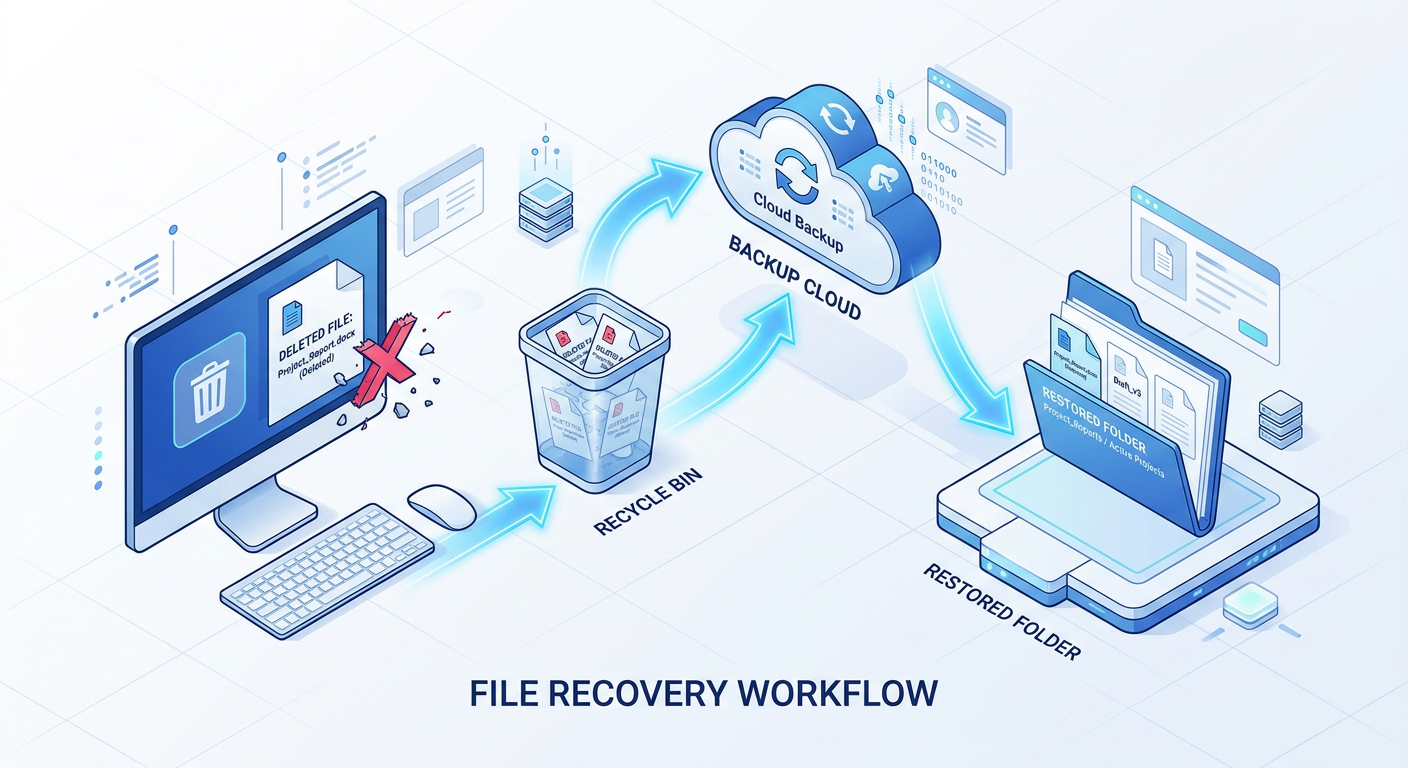
On Windows, deleted files usually go to the Recycle Bin first. On macOS, they move to the Trash. If the file is there, you can often restore it with a right-click and a simple restore option.
This is the quickest win, and it is worth checking even if you think the file was permanently deleted.
Look for Recent Backups
If you use automatic backups, your file may already be safe. Windows File History, Time Machine on Mac, cloud backups, or third-party backup software can often restore deleted documents in just a few clicks.
If you want to improve your backup setup later, the Microsoft support pages and Apple support pages are useful starting points.
Use Built-In System Recovery Tools
If the file is not in the trash or a backup, your operating system may still be able to help. These tools are especially useful when you deleted something recently.
Windows File History and Previous Versions
Windows sometimes stores earlier versions of files and folders. If File History or System Protection was enabled, you may be able to open the file’s folder, view previous versions, and restore an older copy.
That can be a lifesaver for work documents, spreadsheets, and project files.
Time Machine on Mac
Mac users can open Time Machine and scroll back through older snapshots of files and folders. If the deleted file existed before the deletion, you may be able to restore it directly from a previous backup point.
This is one of the best reasons to keep Time Machine running regularly.
Try File Recovery Software Carefully
When built-in tools do not work, recovery software can help scan your drive for deleted files. These tools look for file traces that have not yet been overwritten.
Act Fast
Speed matters here. The more you use the computer after deletion, the more likely new data will overwrite the file you want back. Try to avoid downloading large files, installing software, or saving new documents to the same drive.
Choose Trusted Recovery Tools
There are many recovery apps available, but quality varies a lot. Look for reputable software with clear instructions, good support, and strong user reviews. For general data recovery guidance, CISA offers useful security and backup advice that reinforces safe digital habits.
Scan the Correct Drive
If the deleted file was on your desktop, it may still be on your system drive. Make sure the recovery tool scans the right disk, and save recovered files to a different drive if possible to avoid overwriting anything else.
What to Do If the File Is Still Missing
Sometimes the file is gone from the trash, backups are off, and recovery software finds nothing. That does not always mean the situation is hopeless.
Check Cloud Sync Services
If you use OneDrive, Google Drive, Dropbox, or iCloud Drive, the file may still be in a cloud trash or version history area. These services often keep deleted items for a limited time, so it is worth checking their web dashboards.
Search for Temporary or Auto-Saved Copies
Apps like Microsoft Word, Excel, and some design tools may create temporary or autosaved versions. Look in the app’s recovery features, recent files list, and autosave folders.
Consider Professional Recovery Help
If the file is extremely important and the drive is damaged, professional recovery services may be the safest option. This is especially true for failing hard drives or SSD issues where DIY attempts could make things worse.
How to Improve Your Chances Next Time
Recovery is useful, but prevention is better. A few simple habits can save you a lot of stress later.
Keep Backups Automatic
Set up regular backups and let them run without thinking about it. One local backup plus one cloud backup gives you a much better safety net.
Organize Important Files Away From the Desktop
The desktop is convenient, but it is not always the safest long-term storage place. Keep critical files in properly named folders, and back those folders up regularly.
Use Version History Where Possible
Version history can protect you from accidental deletion, overwrites, and bad edits. If your workflow supports it, turn it on.
Conclusion
Learning how to recover deleted files on desktop is mostly about acting quickly and checking the right places in the right order. Start with the Recycle Bin or Trash, move to backups and system recovery tools, then try trusted recovery software if needed.
If the file matters, do not panic. Follow the steps carefully, avoid overwriting the drive, and you will give yourself the best possible chance of getting it back.
Recover Your Files Before It Is Too Late
If you want more practical tech guides like this, visit Tech On The Go for clear, useful advice on devices, software, and everyday digital problems. The faster you act after deletion, the better your recovery odds usually are.

One of the Editors for Tech on the Go, I love covering mobile tech and social media. I also manage the reviews we cover so all the writers stay on my good side!