Microsoft used its Windows and Surface event on 7 October to show off a rebuilt Windows Search, and the pitch is bigger than faster file lookups. According to Windows lead Pavan Davuluri, the new experience is designed so you can find apps, settings and files more quickly, and then act on them without leaving the taskbar. This is a first look based on Microsoft’s demos rather than extended hands-on testing, but several of the ideas look genuinely useful.
A Cleaner, Rebuilt Interface
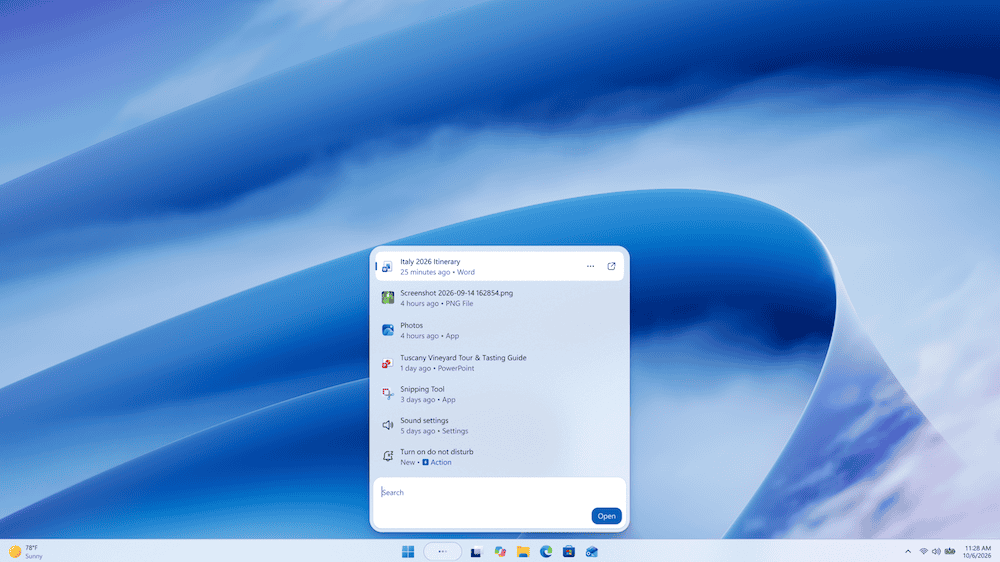
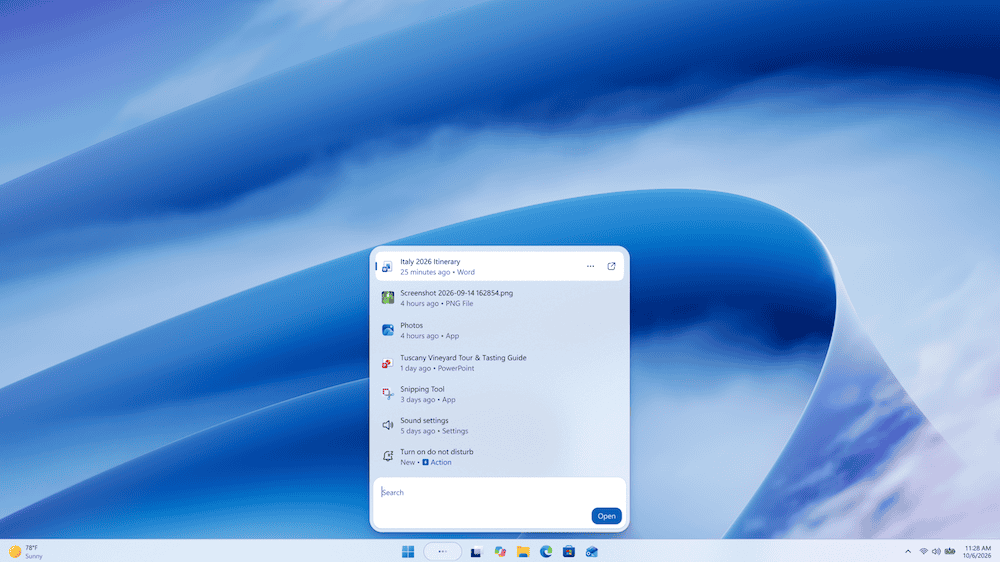
The new Search appears as a vertical panel with rounded corners. The search box sits at the bottom of the flyout, with results stacked above it in a single list. In Microsoft’s demo, typing “background image” returned the Background image settings first, followed by a slideshow setting, a Control Panel troubleshooter and local image files.
Each result carries a small label such as “System settings”, “Control panel” or “Photos”, so you know what you’re about to open before you click. Image files show when they were last modified, and an Open button sits in the lower-right corner for the selected result. Search also copes better with typos, so a slightly mangled query should still find what you meant.
Bing hasn’t disappeared. The demo screenshot still lists “Bing search suggestion” and “Search with Bing” entries beneath the local results, though they sit below the items on your own PC.
Thousands of Quick Actions
The headline feature is that Search can now change things, not just locate them. Microsoft says thousands of quick actions will be available directly from the taskbar. Its own examples fall into three groups:
- Switching things on or off: phrases like “switch to dark mode”, “turn on night light” or “turn on Bluetooth”.
- Quick adjustments: “dim my screen” or “mute”.
- Managing your workspace: “minimize all my windows” or “arrange windows on screen”.
Do Not Disturb and screenshots are also on the list. The practical benefit is that you no longer need to remember where a toggle lives in Settings. You type what you want to happen and it happens.
Inline Controls Are the Smartest Touch
My favourite demo was the microphone example. Searching “increase mic vol” brought up an Input volume slider at the top of the results, with links to Sound settings and related options underneath. As Davuluri put it, “You can turn up your mic volume and then use the inline slider to get to the exact level you want.”
That sounds minor, but it solves a familiar problem. If a colleague says they can barely hear you on a call, you can fix it in seconds from the same panel instead of digging through nested menus mid-meeting. Embedding controls in results, rather than just linking to Settings, is the kind of change that could genuinely save time every day.
Texting From the Taskbar and Copilot Built In
Another demo showed a text message reading “running 5 mins late” composed inside the Search panel, with Word and PowerPoint open behind it. Davuluri called messaging his personal favourite, since you can let someone know you’re delayed without pulling your phone out of your pocket. Windows Central reports the feature works through Phone Link, so it will depend on having a phone paired to your PC.
Copilot also gets a place in the new Search. You can summon it from the panel and see its responses directly in the interface, with a shortcut to open the full Copilot app if you want more room. It’s a more integrated approach than a separate app or a dedicated taskbar box. Windows Central notes that the standalone Ask Copilot taskbar feature is being switched off for now as Microsoft moves towards a unified Copilot app.
The Agentic Windows Strategy
Windows Central describes the new Search as a “system composer”, meaning it can control your PC rather than simply browse it. That fits Microsoft’s broader push towards an agentic Windows, where the operating system takes actions on your behalf. The event opened with a heavy focus on AI models and developer tools, which may have left general consumers cold, but Search is where that groundwork becomes visible in everyday use. Features like inline controls and natural-language commands depend on the underlying platform work.
When Can You Get It?
The rollout is staged. Microsoft began testing the new Search with Windows Insiders on 7 October, appearing first in the Experimental channel. A wider release to Windows 11 PCs is planned for this autumn. Microsoft’s own announcement describes the new Search as coming to all PCs later this year, but exact dates and any hardware requirements haven’t been spelled out, so it’s worth watching for updates as the preview progresses.
Early Verdict
On paper, this is one of the more practical Windows 11 changes in a while. A cleaner results list, clearer labels and a more forgiving search engine address long-standing complaints about Windows Search being slow and cluttered. The quick actions and inline sliders add real utility, and the messaging and Copilot integrations show where Microsoft wants to take the taskbar.
Questions remain. Bing suggestions still appear in the results, and some features depend on Phone Link or Copilot, which not everyone uses. Microsoft’s demos are also carefully chosen, so real-world accuracy will matter. If Search reliably understands what you ask and carries it out, it could become the fastest way to control a Windows PC. If it stumbles, it will be another feature that looks better on stage than on your desktop.

Scouring the internet for mobile tech, news & tips!